If your TeaTV APK v11.1.7r is not working properly, don’t worry. Many users experience issues such as buffering, installation errors, download failures, blank screens, or missing streaming links. The good news is that most of these problems can be fixed within a few minutes.
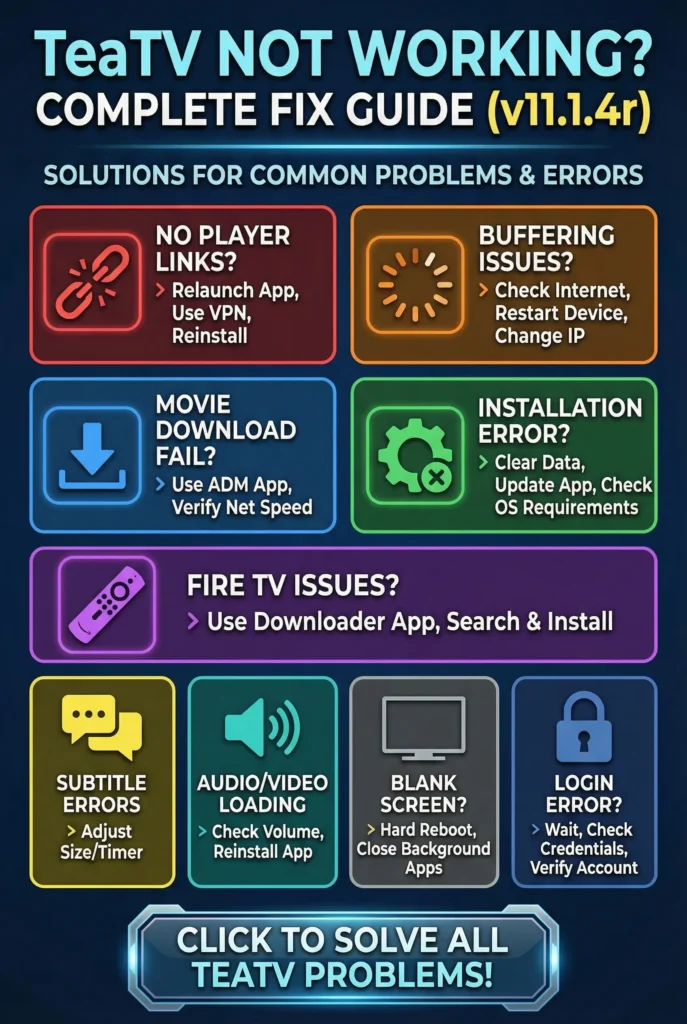
Common TeaTV APK v11.1.7r Problems and Solutions
Although TeaTV v11.1.7r includes improved stability and bug fixes, some users may still encounter problems depending on their device, internet connection, or app settings. Follow the solutions below to get TeaTV working again.
No Streaming Links Available
One of the most common TeaTV issues is when movies or TV shows display no streaming links.
How to Fix
- Close the TeaTV app completely and reopen it.
- Refresh the movie or TV show page.
- Make sure you are using TeaTV APK v11.1.7r.
- Clear the app cache from your device settings.
- Restart your device.
- If links are still unavailable, uninstall and reinstall the latest version.
- If the issue is region-related, try using a trusted VPN with a different server location.
TeaTV Buffering Problem
Buffering usually happens because of a slow or unstable internet connection, but device performance can also affect playback.
Solutions
- Check your internet speed.
- Switch between Wi-Fi and mobile data.
- Restart your router if necessary.
- Close background applications.
- Restart your device.
- Lower the video quality if your connection is slow.
- If using a VPN, connect to another server.
You Can Also Read : Download TeaTV for PC
Movie Download Not Working
If TeaTV fails to download movies or TV shows, the problem is usually related to your internet connection or download manager.
Fix the Download Issue
- Make sure your internet connection is stable.
- Confirm your device has enough storage space.
- Install the latest version of ADM (Advanced Download Manager).
- Copy the download link from TeaTV and paste it into ADM.
- Update TeaTV to v11.1.7r if you’re using an older version.
TeaTV APK Not Installing
Sometimes the APK cannot be installed because of compatibility issues or incorrect device settings.
Solutions
- Enable Install Unknown Apps in your device settings.
- Download the latest TeaTV APK v11.1.7r.
- Delete any older TeaTV APK file before installing.
- Ensure your Android version is supported.
- Clear storage if your device is low on space.
- Restart your phone and try the installation again.
System Requirements
- Android 5.0 or later
- Windows 7 or later (using an Android emulator)
TeaTV Not Working on Fire TV or FireStick
If TeaTV crashes or does not open on FireStick or Fire TV, reinstalling the latest version usually fixes the issue.
Steps
- Open the Downloader app.
- Download TeaTV APK v11.1.7r.
- Install the APK.
- Restart your FireStick.
- Launch TeaTV again.
If the app still crashes, clear the app cache and data from FireStick settings before reinstalling.
Subtitle Problems
Subtitle issues can occur after changing players or streaming sources.
You Can Also Read : TeaTV Apk Is the Best Free Streaming App for Android
Common Fixes
- Increase or decrease subtitle size in Settings.
- Sync subtitle timing if subtitles are delayed.
- Change to another subtitle language.
- Download subtitles again if they fail to load.
- Use the latest built-in player or a compatible external player.
Audio or Video Not Playing
Sometimes only the audio works, or the video remains black.
Try These Solutions
- Increase your device volume.
- Test another movie or TV show.
- Restart TeaTV.
- Clear the app cache.
- Update to TeaTV APK v11.1.7r.
- Check your internet connection.
- Restart your device if playback problems continue.
Notification Problems
If TeaTV notifications are missing or not working correctly:
- Open Settings > Apps > TeaTV > Notifications.
- Enable notifications.
- Disable battery optimization for TeaTV.
- Restart the app after making changes.
Blank Screen or App Crash
A black or white screen is usually caused by corrupted cache files or an incomplete installation.
Fix Blank Screen
- Force close TeaTV.
- Clear cache and app data.
- Restart your phone.
- Reinstall TeaTV APK v11.1.7r.
- Make sure your device software is updated.
- If necessary, perform a fresh installation after deleting the previous version.
Login or Account Error
Some users may experience login problems while accessing their accounts.
Solutions
- Verify your internet connection.
- Check that your login credentials are correct.
- Wait a few minutes if the server is temporarily unavailable.
- Restart the app.
- Update to TeaTV v11.1.7r.
- If using social login, make sure you are already signed into that account on your device.
Why Update to TeaTV APK v11.1.7r?
The latest version includes several improvements over previous releases, including:
- Better streaming performance
- Improved compatibility with newer Android devices
- Faster loading times
- Reduced app crashes
- Bug fixes for playback and downloads
- More stable streaming links
- Enhanced overall user experience
Final Words
TeaTV APK v11.1.7r is currently the latest version and offers better stability, faster performance, and improved compatibility compared to previous releases. If you encounter issues such as buffering, installation errors, missing links, download failures, or app crashes, the troubleshooting methods above should resolve most problems.For the best experience, always use the latest TeaTV APK v11.1.7r, keep your device updated, and maintain a stable internet connection.